Vi Editor: Operational Modes and Command Reference

Prakhar Singh
Prakhar Singh
Table of Contents
Vi is a modal text editor installed by default on most Linux and Unix systems. Unlike standard GUI editors, Vi separates text insertion from command execution. This guide covers operational modes, efficient file manipulation, and an advanced command reference.
1. Understanding the Modes
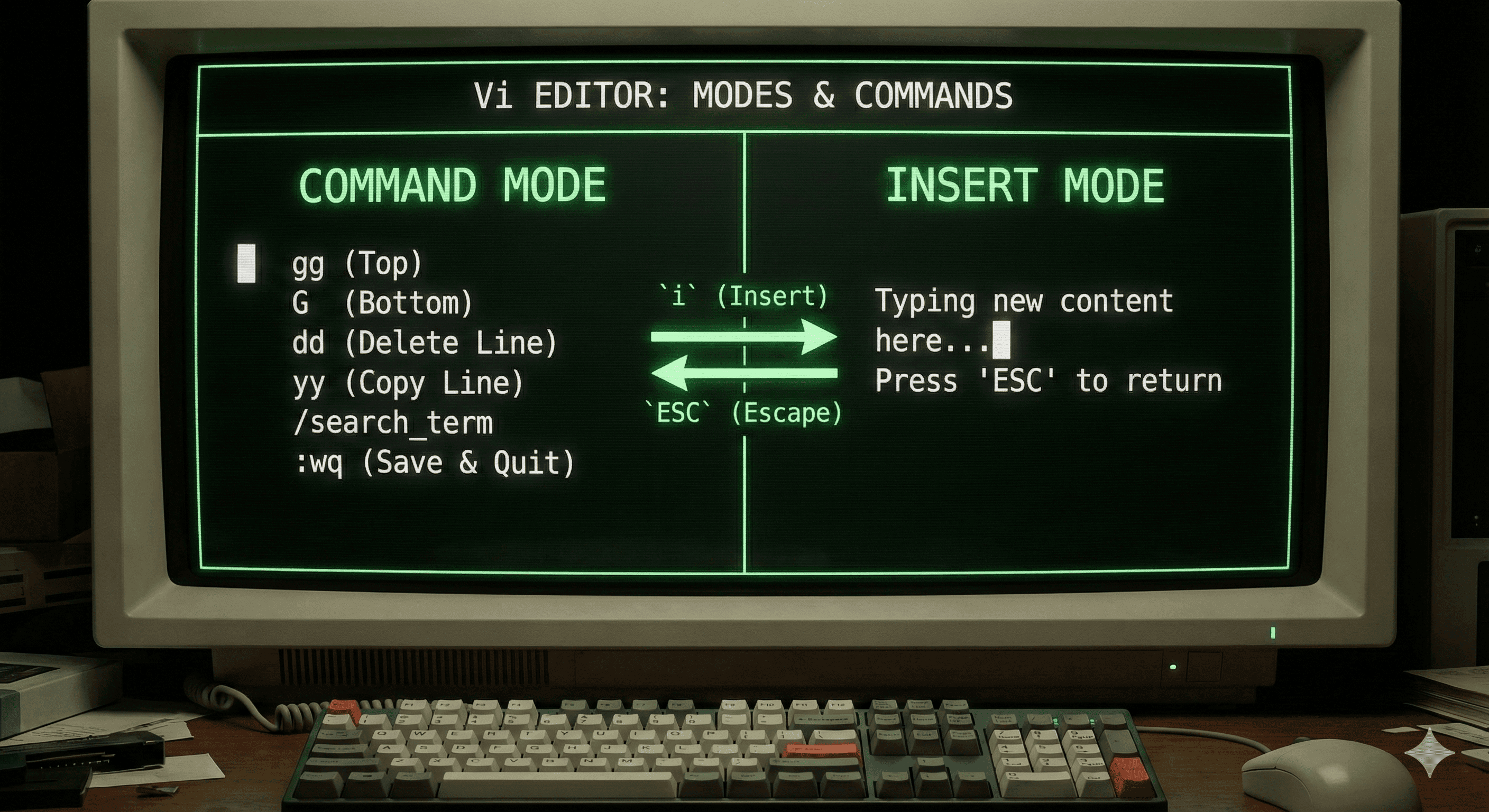
Vi operates in three primary modes. Understanding the distinction is essential for effective usage.
• Command Mode (Default)
When you open a file (vi filename.txt), Vi starts in Command Mode.
- ~ Function: Navigation, copy/paste, deletion, and command execution.
- ~ Restriction: You cannot type text directly into the file here.
- ~ Recovery: Press
ESCto force a return to Command Mode from any state.
• Insert Mode
- ~ Function: Used to write and modify text content.
- ~ Entry: Press
i(insert before cursor) ora(append after cursor). - ~ Exit: Press
ESCto return to Command Mode.
• Visual Mode (Advanced)
- ~ Function: Enables text highlighting and selection for batch manipulation.
- ~ v: Character-wise selection.
- ~ V: Line-wise selection.
- ~ Ctrl+v: Block-wise (rectangular) selection.
2. Basic File Operations
These commands control the file state and must be run from Command Mode. They are executed at the prompt (triggered by typing :).
| Command | Description |
|---|---|
:w | Write. Saves changes to the disk. |
:w filename | Write As. Saves the file with a specific name. |
:q | Quit. Exits the editor. |
:wq or :x | Write and Quit. Saves changes and exits. |
:q! | Force Quit. Exits without saving changes. |
:e filename | Edit. Opens a new file within the current editor session. |
3. Editing and Navigation
All keystrokes below function in Command Mode.
Precision Navigation
h: Move Leftj: Move Downk: Move Upl: Move Right
Advanced Movement
w: Jump forward to the start of the next word.b: Jump backward to the start of the previous word.0: Jump to the absolute start of the line.^: Jump to the first non-blank character of the line.$: Jump to the end of the line.gg: Go to the first line.G: Go to the last line.:n: Jump to line number n.
Inserting & Appending
i: Insert before cursor.I: Insert at the beginning of the current line.a: Append after cursor.A: Append at the end of the current line.o: Open a new line below the cursor.O: Open a new line above the cursor.
Deleting and Modifying
x: Delete character under cursor.r: Replace a single character under cursor.dd: Delete the current line.dw: Delete from cursor to the next word.D: Delete from cursor to the end of the line.u: Undo last change.Ctrl+r: Redo.
Search and Replace
/pattern: Search forward.?pattern: Search backward.n: Next match.N: Previous match.:%s/old/new/g: Global replace.:%s/old/new/gc: Global replace with confirmation.
4. Configuration
To make Vi/Vim more user-friendly, you can create a .vimrc file in your home directory with these settings:
bash
:set number
:set syntax=on
:set autoindent
:set ignorecase
5. Quick Reference Cheat Sheet
System Commands
:wq— Save and Quit:q!— Force Quit
Cursor Movement
h j k l— Left, Down, Up, Rightgg / G— Top / Bottom of filew / b— Next / Previous word
Editing
o / O— Insert line below / abovedd— Cut lineyy— Copy linep— Pasteu— Undo:%s/x/y/g— Replace globally